Our Solicitor Certifies Your Documents for FCDO e-Apostille
Eligible UK documents digitally signed and prepared for fast electronic legalisation
Our solicitor is registered with the FCDO
1至2個工作天
FCDO e-Apostille option

关于作者
KH is a practising solicitor based in London, admitted in England & Wales and regulated by the Solicitors Regulation Authority. He is registered with the Foreign, Commonwealth & Development Office. KH has worked as legal counsel and in-house solicitor across leading firms and corporations. He personally oversees every apostille and legalisation case at Ginkgo Advisory, ensuring consistency, accuracy, and end-to-end quality control.
KH Lam, LLB, LLM
Legal Consultant of Ginkgo Advisory
Why You Must Open an FCDO e-Apostille in Adobe Reader
An FCDO e-Apostille may look incomplete if you open it in the wrong PDF viewer.
For example, you may only see the cover sheet. You may not see the public document, the apostille certificate or the electronic signature details.
This does not always mean the file is wrong.
Often, it means the recipient has opened the PDF in a browser, email preview or mobile viewer instead of Adobe Reader.
The Cover Sheet Gives the Key Instruction
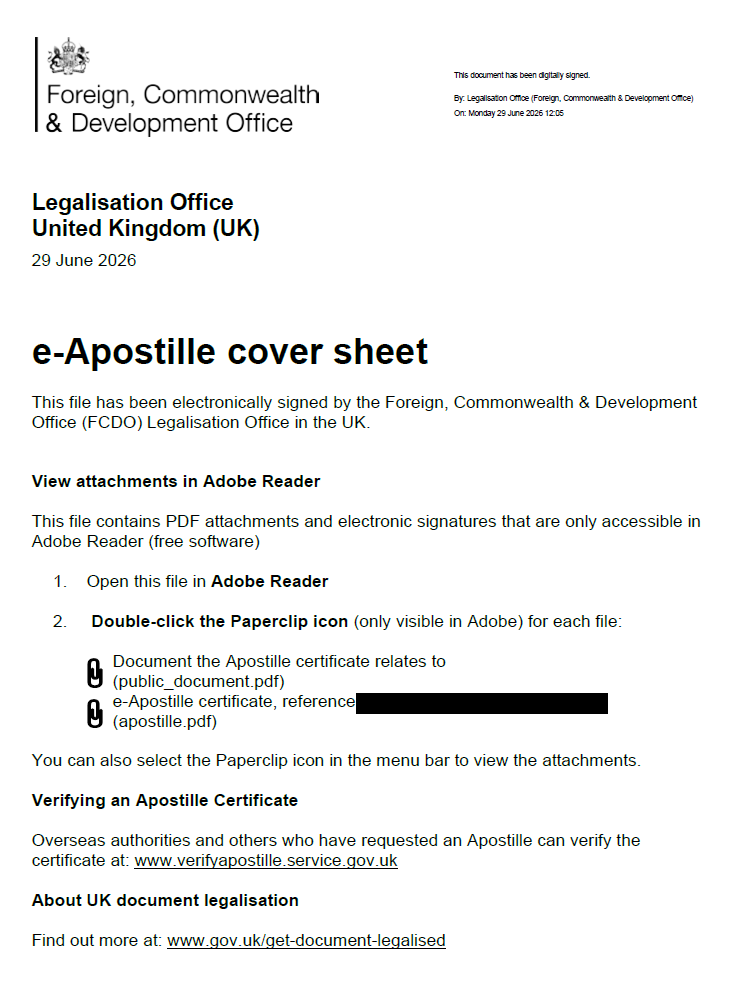
The FCDO e-Apostille cover sheet normally tells the recipient to open the file in Adobe Reader.
It also explains that the file contains PDF attachments and electronic signatures. In the uploaded sample, the cover sheet says the attached files include public_document.pdf and apostille.pdf. It also tells users to double-click the paperclip icon to view the attachments.
This instruction matters because the attached documents form part of the legalised PDF package.
What the Paperclip Icon Shows
In Adobe Reader, the paperclip icon usually opens the attachments panel.
That panel may show:
- the document the apostille relates to
- the e-Apostille certificate
- supporting PDF attachments
- signature-related information
The names may vary, but many e-Apostille PDFs use clear labels such as public_document.pdf and apostille.pdf.
If the recipient does not open those attachments, they may not see the actual apostille certificate.
Why Browser Preview Can Cause Confusion
Many people open PDFs in a browser by default.
That may work for simple documents. However, an FCDO e-Apostille is not a simple one-page PDF. It can include embedded files and electronic signatures.
A browser preview may show the cover sheet but hide the attachments.
As a result, an overseas authority may think the apostille certificate is missing. In reality, it may sit inside the PDF package.
How to View the e-Apostille Correctly
Use these steps:
- Download the full e-Apostille PDF.
- Open the file in Adobe Reader.
- Select the paperclip or attachments panel.
- Open the public document attachment.
- Open the apostille certificate attachment.
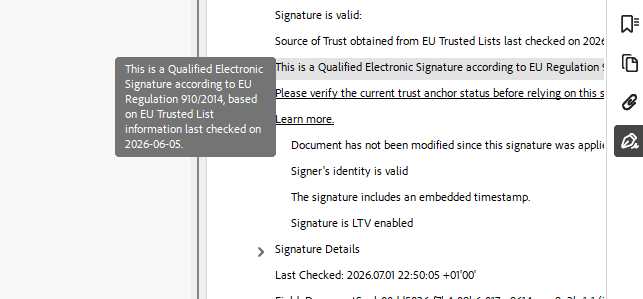
- Check the digital signature panel where required.
Adobe’s own guidance explains that digital signatures in PDFs can be checked through the Signatures panel, where users can validate signatures and review signer certificate details.
What the Overseas Recipient Should Check
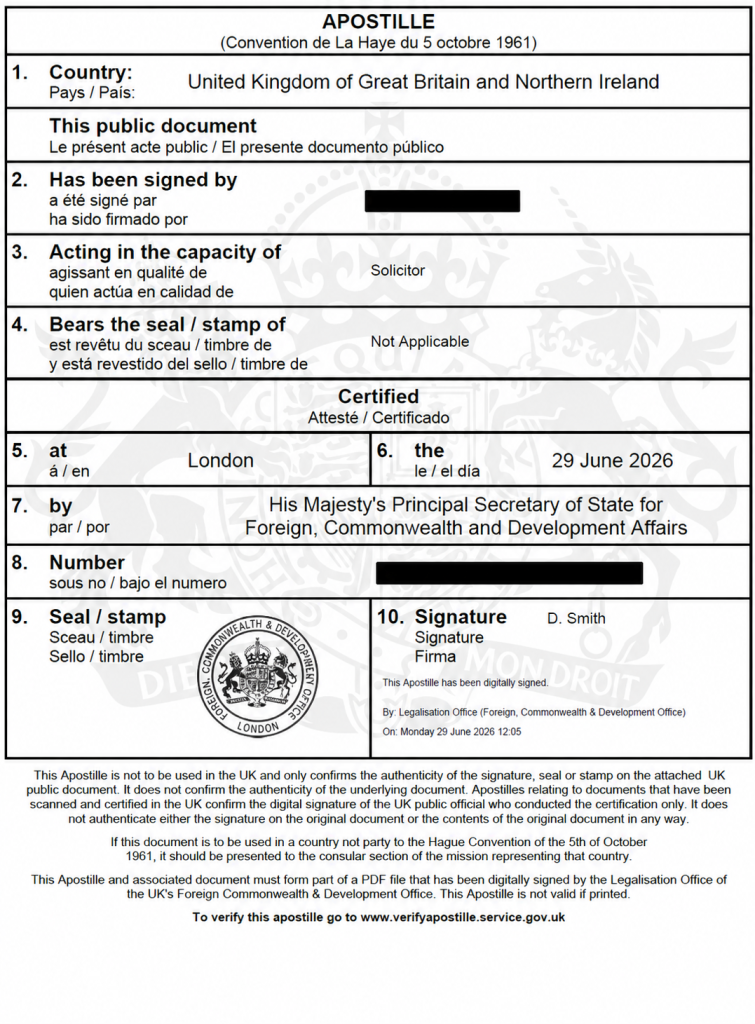
The recipient should check that the PDF package contains:
- the FCDO cover sheet
- the public document
- the apostille certificate
- the apostille number
- the issue date
- the FCDO digital signature
- any solicitor digital signature on the certified document
They should also verify the apostille using the official UK apostille verification service.
How Our Solicitor Helps Avoid Problems
Our solicitor helps prepare eligible documents so the e-Apostille package is easier to understand.
We can review the document, prepare enhanced certification, apply an electronic solicitor signature and arrange FCDO e-Apostille submission.
We can also provide clear guidance for the recipient, so they know how to open the legalised PDF and find the attachments.
Need Help Preparing an e-Apostille PDF?
Ginkgo Advisory can assist with eligible UK documents for FCDO e-Apostille.
Our solicitor can verify, certify and digitally sign your PDF for FCDO submission. We can also guide you on how to share the final e-Apostille with the overseas recipient.
常见问题(FAQ)
Why can I only see the e-Apostille cover sheet?
The PDF may be open in a browser or basic viewer. Open it in Adobe Reader and check the attachments panel.
What is the paperclip icon in an e-Apostille PDF?
The paperclip icon shows embedded PDF attachments, such as the public document and apostille certificate.
Do I need Adobe Reader for an FCDO e-Apostille?
The FCDO cover sheet usually directs users to Adobe Reader because the file contains attachments and electronic signatures.
Can Ginkgo Advisory help explain the PDF to the recipient?
Yes. We can provide practical guidance on how to open, check and share the legalised PDF.
联系我们



地址
Suite 161, 30 Red Lion Street, London, TW9 1RB, England